FSCP Forescout Certified Professional Exam Free Practice Exam Questions (2026 Updated)
Prepare effectively for your Forescout FSCP Forescout Certified Professional Exam certification with our extensive collection of free, high-quality practice questions. Each question is designed to mirror the actual exam format and objectives, complete with comprehensive answers and detailed explanations. Our materials are regularly updated for 2026, ensuring you have the most current resources to build confidence and succeed on your first attempt.
When configuring policies, which of the following statements is true regarding this image?
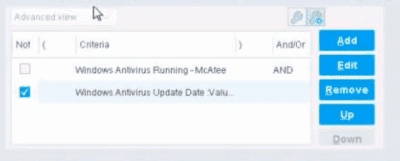
The NOT checkbox means the "Evaluate Irresolvable as" should be set to True
The external NOT does not change the meaning of "evaluate irresolvable as"
Has no effect on irresolvable hosts
Negates the criteria inside the property
The NOT checkbox means the "Evaluate Irresolvable as" should be set to False
The Answer Is:
DExplanation:
The NOT checkbox negates the criteria inside the property. According to the Forescout Administration Guide, when the NOT checkbox is selected on a policy condition criteria, it reverses the logic of that specific criterion evaluation.
Understanding the NOT Operator in Policy Conditions:
In Forescout policy configuration, the NOT operator is a Boolean logic operator that inverts the result of the property evaluation. When you select the NOT checkbox:
Logical Inversion - The condition is evaluated normally, and then the result is inverted
Criteria Negation - If a criteria would normally match an endpoint, selecting NOT causes it NOT to match
Property-Level Operation - The NOT operator applies specifically to that individual property/criterion, not to the entire rule
Example of NOT Logic:
Without NOT:
Condition: "Windows Antivirus Running = True"
Result: Matches endpoints that HAVE antivirus running
With NOT:
Condition: "NOT (Windows Antivirus Running = True)"
Result: Matches endpoints that DO NOT have antivirus running
NOT vs. "Evaluate Irresolvable As":
According to the documentation, the NOT operator and "Evaluate Irresolvable As" are independent settings:
NOT operator - Negates/inverts the criteria evaluation itself
"Evaluate Irresolvable As" - Defines what happens when a property CANNOT be resolved (is irresolvable)
These serve different purposes:
NOT determines what value to match
Evaluate Irresolvable As determines how to handle unresolvable properties
Handling Irresolvable Criteria:
According to the administration guide documentation:
"If you do not select the Evaluate irresolvable criteria as option, the criteria is handled as irresolvable and the endpoint does not undergo further analysis."
The "Evaluate Irresolvable As" checkbox allows you to define whether an irresolvable property should be treated as True or False when the property value cannot be determined. This is independent of the NOT checkbox.
Why Other Options Are Incorrect:
A. The NOT checkbox means the "Evaluate Irresolvable as" should be set to True - Incorrect; NOT and Evaluate Irresolvable As are independent settings
B. The external NOT does not change the meaning of "evaluate irresolvable as" - While technically true that NOT doesn't change the Evaluate Irresolvable setting, the answer doesn't explain what NOT actually does
C. Has no effect on irresolvable hosts - Incorrect; NOT negates the criterion logic regardless of whether it's resolvable
E. The NOT checkbox means the "Evaluate Irresolvable as" should be set to False - Incorrect; NOT and Evaluate Irresolvable As are independent
Policy Condition Structure:
According to the documentation, a policy condition consists of:
Property criteria combined with Boolean logic operators
Individual criterion settings including NOT operator
Irresolvable handling options that are separate from the NOT operator
Referenced Documentation:
Forescout Administration Guide - Define policy scope
Forescout eyeSight policy sub-rule advanced options
Handling Irresolvable Criteria section
Working with Policy Conditions
Which of the following best describes why PXE boot endpoints should be exempt from Assessment policies?
Because they will not be subject to the Acceptable Use Policy
They have already been deployed and should immediately be subject to Assessment policies
Because they are not yet manageable and may not have all the required software and services installed
Because they will never be manageable or have the required software and services
Because they are special endpoints playing a specific role in the network
The Answer Is:
CExplanation:
Comprehensive and Detailed Explanation From Exact Extract of Forescout Platform Administration and Deployment:
PXE (Preboot Execution Environment) boot endpoints should be exempt from Assessment policies because they are not yet manageable and may not have all the required software and services installed. According to the Forescout Administration Guide, endpoints in the early stages of deployment, such as those booting via PXE, are temporary in nature and lack the necessary management capabilities and required software components.
PXE Boot Endpoints Characteristics:
PXE boot endpoints represent machines in a temporary state during the deployment process:
Not Yet Fully Deployed - PXE boot is used during initial OS installation and deployment
Lack Required Services - The endpoint does not yet have installed:
SecureConnector (if required for management)
Endpoint agents
Required security software
Management services
Limited Configuration - The endpoint may not have completed network configuration
Temporary State - PXE boot endpoints are in a transient state, not their final operational state
Policy Endpoint Exceptions:
According to the documentation, administrators can "select endpoints in the Detections pane and exempt them from further inspection for the policy that detected them". This is particularly important for PXE boot endpoints because:
False Positives - Assessment policies might flag PXE boot endpoints as non-compliant due to missing software that hasn't been installed yet
Blocked Deployment - If blocking actions are applied, they could interfere with the deployment process
Temporary Assessment - Once the endpoint is fully deployed and manageable, it can be added back to Assessment policies
Operational Efficiency - Exempting PXE boot endpoints prevents unnecessary policy violations during the deployment window
Manageable vs. Unmanageable Endpoints:
According to the documentation:
"Endpoints are generally unmanageable if their remote registry and file system cannot be accessed by Forescout. Unmanageable hosts can be included in your policy."
PXE boot endpoints specifically fall into this category because:
Remote management is not yet available
Required agents are not installed
File system access is not established
Why Other Options Are Incorrect:
A. Because they will not be subject to the Acceptable Use Policy - Not the primary reason; Assessment policies differ from Acceptable Use policies
B. They have already been deployed and should immediately be subject to Assessment policies - Contradicts the purpose; PXE boot endpoints are NOT yet deployed
D. Because they will never be manageable or have the required software and services - Incorrect; once deployed, they WILL become manageable
E. Because they are special endpoints playing a specific role in the network - While true in context, this doesn't explain why they need exemption
Referenced Documentation:
Forescout Administration Guide - Create Policy Endpoint Exceptions
Restricting Endpoint Inspection documentation
Manage Actions - Unmanageable hosts section
Which of the following is the best way to brand the CounterACT HTTP pages to look like corporate internal web pages?
Using the "Reports Portal," modify the CSS for the desired skins
This is not possible with CounterACT portal and HTTP pages
Using the "User Portal Builder," modify the CSS for the desired skins
Have a webmaster modify the HTML pages within the Tomcat web server
Using the "User Portal Builder" basic interface
The Answer Is:
CExplanation:
Comprehensive and Detailed Explanation From Exact Extract of Forescout Platform Administration and Deployment:
According to the Forescout Administration Guide, the best way to brand CounterACT HTTP pages to match corporate identity is to use "the 'User Portal Builder' to modify the CSS for the desired skins". This is the officially supported method for customizing the appearance of Forescout portal pages.
User Portal Builder for Branding:
The User Portal Builder provides:
CSS Customization - Modify cascading stylesheets to match corporate branding
Skin Selection - Choose different portal skins/themes
Logo and Colors - Customize logos, color schemes
Supported Customization - Official, supported method through the GUI
Why Option C is Correct:
The User Portal Builder specifically provides CSS modification capabilities to customize the appearance of Forescout HTTP portal pages to match organizational branding standards.
Why Other Options Are Incorrect:
A. Reports Portal - Reports Portal is separate from HTTP portal pages; not for branding
B. Not possible - Customization IS possible through User Portal Builder
D. Modify HTML in Tomcat - While technically possible, this is NOT supported; may break with updates
E. Basic interface only - The full User Portal Builder supports CSS modification, not just basic interface
Supported Customization Methods:
According to the documentation:
✓ User Portal Builder (CSS) - Supported, recommended method
✗ Direct Tomcat HTML modification - Not supported; unsupported method
✗ Manual CSS editing - Unsupported; may conflict with updates
Referenced Documentation:
Forescout Administration Guide - User Portal Builder section
Which of the following statements is true regarding Layer-2 channel?
Recommended when there are a large number of VLANs
Response interface is a VLAN trunk
Monitor interface is a trunk
Utilizes two interfaces
Appliance monitor interface must be connected to an access layer switch
The Answer Is:
DExplanation:
Comprehensive and Detailed Explanation From Exact Extract of Forescout Platform Administration and Deployment:
According to the Forescout Installation Guide and Working with Appliance Channel Assignments documentation, a Layer-2 channel "Utilizes two interfaces" - one monitor interface and one response interface.
Layer-2 Channel Structure:
According to the documentation:
"A channel defines a pair of interfaces used by the Appliance to protect your network. In general, one interface monitors traffic going through the network (the monitor interface), and the other responds to traffic on the network (the response interface)."
Two Interface Components:
According to the Installation Guide:
Monitor Interface:
Monitors and tracks network traffic
Traffic is mirrored from switch ports
No IP address required
Can be any available interface
Response Interface:
Responds to monitored traffic
Used for policy actions and protections
Configuration depends on VLAN tagging
Can be same VLAN or trunk configuration
Layer-2 vs. Layer-3 Channel:
According to the documentation:
Layer-2 Channel - Two interfaces (monitor and response)
Layer-3 Channel - Uses IP layer for response
Why Other Options Are Incorrect:
A. Recommended for large number of VLANs - Actually, Layer-2 channels with VLAN tagging are recommended for multiple VLANs, but this doesn't define what a Layer-2 channel is
B. Response interface is a VLAN trunk - While response interface CAN be a trunk for multiple VLANs, it's not required for all configurations
C. Monitor interface is a trunk - The monitor interface receives mirrored traffic; trunk configuration depends on VLAN setup
E. Must be connected to access layer switch - The appliance can connect to various switch types; not specifically limited to access layer
Referenced Documentation:
Working with Appliance Channel Assignments
Quick Installation Guide v8.4
Quick Installation Guide v8.2
Add Channels
Monitor Interface
Set up the Forescout Platform Network
Which of the following does NOT need to be checked when you are verifying correct switch plugin configuration?
The Switch plugin is running
Correct switch management credentials are configured for each switch
IP address ranges are assigned to the correct appliance
Each switch passes the plugin test
Each switch is assigned to the correct appliance
The Answer Is:
CExplanation:
Comprehensive and Detailed Explanation From Exact Extract of Forescout Platform Administration and Deployment:
According to the Forescout Switch Plugin Configuration Guide, when verifying correct switch plugin configuration, you do NOT need to check: "IP address ranges are assigned to the correct appliance". This setting is network/appliance configuration, not switch plugin-specific configuration.
Switch Plugin Configuration Verification Checklist:
According to the Switch Plugin documentation:
When verifying switch plugin configuration, you MUST check:
A. The Switch plugin is running ✓
Plugin status must be active
Verify in plugin management interface
B. Correct switch management credentials ✓
SSH/CLI credentials configured
SNMP credentials (v1/v2/v3) configured
Must have appropriate permissions
D. Each switch passes the plugin test ✓
Use plugin test function to verify connectivity
Confirms credentials and permissions work
Validates communication protocols
E. Each switch is assigned to the correct appliance ✓
Switch must be assigned to managing appliance
Critical for multi-appliance deployments
Ensures proper VLAN management traffic routing
Why C is NOT Required:
According to the documentation:
IP address range assignment (segment assignment) is:
Part of appliance channel/segment configuration
NOT part of switch plugin-specific configuration
Handled at appliance level, not plugin level
Related to appliance management, not switch management
Switch Plugin vs. Appliance Configuration:
According to the configuration guide:
Item
Switch Plugin Config
Appliance Config
Plugin Running
✓Yes
N/A
Switch Credentials
✓Yes
N/A
Plugin Test
✓Yes
N/A
Switch Assignment
✓Yes
N/A
IP Address Ranges
✗No
✓Yes
Referenced Documentation:
CounterACT Switch Plugin Configuration Guide v8.12
Switch Configuration Parameters
Permissions Configuration – Switch
Configuring Switches in the Switch Plugin
The host property 'HTTP User Agent banner' is resolved by what function?
Device classification engine
NetFlow
NMAP scanning
Packet engine
Device profile library
The Answer Is:
DExplanation:
Comprehensive and Detailed Explanation From Exact Extract of Forescout Platform Administration and Deployment:
According to the Forescout Administration Guide - Advanced Classification Properties, the host property "HTTP User Agent banner" is resolved by the Packet Engine.
HTTP User Agent Banner Property:
According to the Advanced Classification Properties documentation:
The HTTP User Agent property is captured through passive network traffic analysis by the Packet Engine, which monitors and analyzes HTTP headers in network traffic.
Packet Engine Function:
According to the Packet Engine documentation:
The Packet Engine provides:
Passive Traffic Monitoring - Analyzes network packets without interfering
HTTP Header Analysis - Extracts HTTP headers from captured traffic
User Agent Detection - Identifies HTTP User Agent strings from web requests
Property Resolution - Populates device properties from observed traffic
HTTP User Agent Examples:
Common User Agent banners that identify device types and browsers:
text
Mozilla/5.0 (Windows NT 10.0; Win64; x64) AppleWebKit/537.36 (KHTML, like Gecko) Chrome/91.0.4472.124 Safari/537.36
Mozilla/5.0 (iPhone; CPU iPhone OS 14_6 like Mac OS X) AppleWebKit/605.1.15
Mozilla/5.0 (Linux; Android 11; SM-G991B) AppleWebKit/537.36
Why Other Options Are Incorrect:
A. Device classification engine - The classification engine uses properties resolved by other components like the Packet Engine
B. NetFlow - NetFlow provides flow statistics, not application-level data like HTTP headers
C. NMAP scanning - NMAP performs active port scanning, not passive HTTP header analysis
E. Device profile library - The profile library uses properties; it doesn't resolve them
Property Resolution by Function:
According to the documentation:
Property
Packet Engine
NMAP
Device Class Engine
Profile Library
HTTP User Agent
✓Yes
✗No
✗No
✗No
Service Banner
✗No
✓Yes
✗No
✗No
OS Classification
Partial
Partial
✓Yes
✗No
Function
✗No
✗No
✓Yes
✓Yes
Referenced Documentation:
Advanced Classification Properties
About the Packet Engine
Forescout Platform Dependencies and Known Issues
When configuring a Send Email action to notify CounterACT administrators, how do you add endpoint specific host information to the message?
Create criteria in sub-rules to detect the desired specific host information. The "Send Email" action will send this information to the CounterACT administrator.
Edit the "Message to Email Recipient" Field of the Send Email action Parameters tab, then click 'Tag" to add the desired property value.
Edit the Options > General > Mail settings and click "Tag" to add the desired property values.
It is not possible to add specific host information for detected endpoints.
Edit the "Message to Email Recipient" Field of the Send Email action Parameters tab, then click 'Tag" to add the desired keyword tag.
The Answer Is:
BExplanation:
Comprehensive and Detailed Explanation From Exact Extract of Forescout Platform Administration and Deployment:
According to the Forescout Administration Guide - Send Email action documentation, to add endpoint-specific host information to a Send Email notification, you should "Edit the 'Message to Email Recipient' Field of the Send Email action Parameters tab, then click 'Tag' to add the desired property value".
Property Tags in Send Email Action:
According to the Property Tags documentation:
"Property tags insert endpoint values into condition or action fields, and are replaced by the actual endpoint property value when the field is evaluated."
Property tags allow dynamic insertion of endpoint-specific data into email messages.
How to Add Property Tags to Email:
According to the documentation:
Edit Send Email Action - Open the Send Email action configuration
Navigate to Parameters Tab - Select the Parameters tab
Edit Message Field - Edit the "Message to Email Recipient" field
Click Tag Button - Select the "Tag" button/option
Choose Property - Select the endpoint property to insert (e.g., IP address, OS, etc.)
Confirm - The property tag is inserted into the message
Example Email Message with Property Tags:
According to the More Action Tools documentation:
text
Example message:
"Endpoint [IP.Address] with hostname [IP.Hostname]
has failed compliance check for operating system [OS]."
When evaluated:
"Endpoint 192.168.1.50 with hostname WORKPC-01
has failed compliance check for operating system Windows 10."
Available Properties for Tags:
According to the documentation:
Property tags can reference:
IP Address
MAC Address
Hostname
Operating System
Device Function
User information
Custom endpoint properties
Why Other Options Are Incorrect:
A. Create criteria in sub-rules - Sub-rules don't send email; they're for conditional logic
C. Edit Options > General > Mail settings - This is for global email configuration, not message customization
D. It is not possible - Incorrect; property tags specifically enable this functionality
E. "Keyword tag" - The feature uses "property tags" or "tags," not "keyword tags"
Referenced Documentation:
Send Email action
Property Tags
More Action Tools - Property tags section
What Protocol does CounterACT use to verify the revocation status of certificates?
PKI Certificate Revocation Protocol (PCRP)
Online Certificate Status Protocol (OCSP)
Online Revocation Status Protocol (ORSP)
Certificate Revocation List Protocol (CRLP)
Certificate Revocation Protocol (CRP)
The Answer Is:
BExplanation:
Comprehensive and Detailed Explanation From Exact Extract of Forescout Platform Administration and Deployment:
According to the Forescout Platform Administration Guide and Certificate Configuration documentation, Forescout uses the Online Certificate Status Protocol (OCSP) to verify the revocation status of certificates.
OCSP in Forescout:
According to the official Forescout documentation:
"You can also configure the use of Online Certificate Status Protocol (OCSP) and set up validation method failover between CRL and OCSP."
And further:
"The Forescout Platform supports certificate revocation lists (CRL) and Online Certificate Status Protocol (OCSP) for smart card authentication."
What OCSP Does:
According to the Wikipedia and Fortinet OCSP documentation:
"The Online Certificate Status Protocol (OCSP) is an Internet protocol used for obtaining the revocation status of an X.509 digital certificate."
OCSP provides:
Real-Time Status Verification - Checks current certificate revocation status
Request/Response Protocol - Sends a query to an OCSP responder
Revocation Status Response - Returns "good," "revoked," or "unknown"
Efficient Alternative to CRL - Smaller data payload than downloading full certificate revocation lists
How OCSP Works:
According to the OCSP documentation:
Request Sent - Client sends OCSP request to OCSP responder (server operated by CA)
Status Verification - Responder checks revocation status with trusted CA
Response Returned - Responder returns current status, revoked, or unknown
Decision Made - Application (like Forescout) accepts or rejects the certificate based on response
Forescout Smart Card Certificate Validation:
According to the Forescout documentation:
When using smart card authentication, Forescout:
Supports OCSP - Sends OCSP requests for certificate revocation status
Supports CRL - Also supports Certificate Revocation Lists as fallback
Failover Configuration - Can be configured to use OCSP with CRL fallback
OCSP vs. Certificate Revocation List (CRL):
According to the documentation:
Aspect
OCSP
CRL
Data Size
Smaller response
Larger list
Update Frequency
Real-time status
Periodic updates
Network Load
Lower burden
Higher burden
Timeliness
Current status
Potentially outdated
Processing
Less complex
More complex parsing
Forescout uses OCSP because it provides real-time, efficient certificate status verification.
Why Other Options Are Incorrect:
A. PKI Certificate Revocation Protocol (PCRP) - This is not a standard protocol; PCRP does not exist
C. Online Revocation Status Protocol (ORSP) - This is not the correct name; the protocol is OCSP, not ORSP
D. Certificate Revocation List Protocol (CRLP) - While Forescout supports CRL, the primary protocol for real-time status is OCSP
E. Certificate Revocation Protocol (CRP) - This is not a standard protocol; the correct protocol is OCSP
Referenced Documentation:
Smart Card Certificate Configuration for Forescout Platform
Using Forescout Platform Smart Card Authentication
Client-Server Connection documentation
Audit Actions - OCSP for Syslog validation
Online Certificate Status Protocol (OCSP) - Wikipedia
What Is Online Certificate Status Protocol (OCSP) - Fortinet
The host property 'service banner' is resolved by what function?
Packet engine
NMAP scanning
Device classification engine
Device profile library
NetFlow
The Answer Is:
BExplanation:
Comprehensive and Detailed Explanation From Exact Extract of Forescout Platform Administration and Deployment:
The Service Banner host property is resolved by NMAP scanning. According to the Forescout Administration Guide - Advanced Classification Properties, the Service Banner property "Indicates the service and version information, as determined by Nmap".
Service Banner Property:
The Service Banner is an Advanced Classification Property that captures critical service identification information:
Purpose - Identifies running services and their versions on endpoints
Resolution Method - Uses NMAP banner scanning functionality
Information Provided - Service name and version numbers (e.g., "Apache 2.4.41", "OpenSSH 7.6")
NMAP Banner Scanning Configuration:
According to the HPS Inspection Engine Configuration Guide, the Service Banner is specifically resolved when "Use Nmap Banner Scan" option is selected:
When Use Nmap Banner Scan is enabled, the HPS Inspection Engine uses NMAP banner scans to improve the resolution of device services, application versions, and other details that help classify endpoints.
NMAP Banner Scan Process:
According to the CounterACT HPS Inspection Engine Guide, when NMAP banner scanning is enabled:
text
NMAP command line parameters for banner scan:
-T Insane -sV -p T: 21,22,23,53,80,135,88,1723,3389,5900
The -sV parameter specifically performs version detection, which resolves the Service Banner property by scanning open ports and identifying service banners returned by those services.
Classification Process:
The Service Banner property is resolved through the following workflow:
Port Detection - Forescout identifies open ports on the endpoint
Banner Scanning - NMAP sends requests to identified ports
Service Identification - Services respond with banner information containing version data
Property Resolution - The Service Banner property is populated with the version information discovered
Why Other Options Are Incorrect:
A. Packet engine - The Packet Engine provides network visibility through port mirroring, but does not resolve service banners through deep packet inspection
C. Device classification engine - While involved in overall classification, the Device Classification Engine doesn't specifically resolve service banners; NMAP does
D. Device profile library - The Device Profile Library contains pre-defined classification profiles but doesn't actively scan for service banners
E. NetFlow - NetFlow provides network flow data and statistics, but cannot determine service version information
Service Banner Examples:
Service Banner property values resolved by NMAP scanning include:
Apache/2.4.41 (Ubuntu)
OpenSSH 7.6p1
Microsoft-IIS/10.0
nginx/1.17.0
MySQL/5.7.26-0ubuntu0.18.04.1
NMAP Scanning Requirements:
According to the documentation:
NMAP Banner Scan must be explicitly enabled in HPS Inspection Engine configuration
Banner scanning targets specific ports typically associated with common services
Service version information improves endpoint classification accuracy
Referenced Documentation:
Forescout Administration Guide - Advanced Classification Properties
HPS Inspection Engine - Configure Classification Utility
CounterACT Endpoint Module HPS Inspection Engine Configuration Guide Version 10.8
NMAP Scan Logs documentation
Which of the following is the SMB protocol version required to manage Windows XP or Windows Vista endpoints?
SMB V3.1.1
SMB V1.0
SMB is not required for XP or Vista
SMB V2.0
SMB V3.0
The Answer Is:
BExplanation:
Comprehensive and Detailed Explanation From Exact Extract of Forescout Platform Administration and Deployment:
According to the Forescout HPS Inspection Engine Configuration Guide and Microsoft SMB Protocol documentation, the SMB protocol version required to manage Windows XP or Windows Vista endpoints is SMB V1.0.
SMB Version Timeline:
According to the Microsoft documentation and Forescout requirements:
Windows Version
SMB Support
Windows XP
SMB 1.0 only
Windows Vista
SMB 1.0 and SMB 2.0
Windows 7
SMB 1.0, SMB 2.0, and SMB 2.1
Windows 8/Server 2012
SMB 2.0, SMB 2.1, and SMB 3.0
Windows 10
SMB 2.1 and SMB 3.x
Windows XP and Vista SMB Requirements:
According to Forescout documentation:
The documentation explicitly states:
"When you require SMB signing, Remote Inspection can no longer be used to manage endpoints that cannot work with SMB signing, for example: Old Windows XP/Server 2003 systems"
This indicates that Windows XP requires SMB support, specifically SMB 1.0, which doesn't support modern SMB signing requirements.
SMB Version Negotiation:
According to the official documentation:
When a Forescout CounterACT appliance connects to an endpoint:
Version Negotiation - Both client and server advertise their supported SMB versions
Highest Common Version Selected - The highest version supported by BOTH is used
Fallback Behavior - If SMB 2.0 is available on Vista but not supported by CounterACT, it falls back to SMB 1.0
For Windows XP (SMB 1.0 only) and Windows Vista (SMB 1.0/2.0):
Minimum Required: SMB 1.0
Maximum Supported: SMB 2.0 (Vista only)
Port Requirements for SMB 1.0:
According to the Forescout documentation:
For Windows XP and Vista endpoints using SMB 1.0:
text
Port 139/TCP must be available
(Port 445/TCP is used for Windows 7 and above)
Historical Context:
According to the documentation:
SMB 1.0 was the original protocol used by Windows 2000, NT, and earlier versions
Windows Vista SP1 and Windows Server 2008 introduced SMB 2.0
SMB 1.0 is considered legacy and insecure (no encryption, subject to security vulnerabilities)
Microsoft recommends disabling SMB 1.0 in modern networks
However, for legacy Windows XP and early Vista systems, SMB 1.0 is the only option.
Why Other Options Are Incorrect:
A. SMB V3.1.1 - This is the latest version, introduced with Windows Server 2016 and Windows 10; not supported on XP or Vista
C. SMB is not required for XP or Vista - Incorrect; SMB is essential for Windows manageability and script execution
D. SMB V2.0 - While Vista supports SMB 2.0, Windows XP does NOT; only SMB 1.0 works on both
E. SMB V3.0 - This requires Windows 8/Server 2012 or later; not supported on XP or Vista
Legacy Endpoint Management Considerations:
According to the documentation:
For legacy endpoints requiring SMB 1.0:
Cannot require SMB signing (not supported in SMB 1.0)
Must allow unencrypted SMB communication
Should be isolated on network segments with security controls
Represents security risk due to SMB 1.0 vulnerabilities
Referenced Documentation:
Forescout HPS Inspection Engine - About SMB documentation
Operational Requirements - Port requirements
Microsoft - SMB Protocol Versions and Requirements
Microsoft - Detect, Enable, and Disable SMBv1, SMBv2, and SMBv3 in Windows
How are additional recipients added to a "Send Mail" action?
Thru the setting on Tools > Options > General > Mail and adding the recipients separated by commas
Thru the policy "Send Mail" action, under the Parameters tab add the recipients separated by commas
Thru Tools > Options > Advanced - Mail and adding the recipients separated by semi-colons
Thru the Tools > Options > NAC Email and adding the recipients separated by semi-colons
Thru the policy sub rule and adding a condition for each of the desired recipients
The Answer Is:
AExplanation:
Comprehensive and Detailed Explanation From Exact Extract of Forescout Platform Administration and Deployment:
According to the Forescout Administration Guide, additional recipients for the "Send Mail" action are added through the setting on Tools > Options > General > Mail and adding the recipients separated by commas.
Managing Email Notification Addresses:
According to the official documentation:
"From the Tools menu, select Options > General > Mail and DNS. Update any of the following fields: Send Email Alerts/Notifications - List email addresses to receive CounterACT email alerts."
Email Address Separator Options:
According to the documentation:
"Separate multiple addresses using any of the following characters: semicolon (;), blank space or comma (,)."
So while commas are the primary method shown in the documentation, the system also accepts semicolons and spaces as separators. However, the answer that most specifically matches the Forescout documentation interface is Option A.
How to Configure Email Recipients:
According to the administration guide:
Open Tools Menu - Select "Tools" from the menu bar
Select Options - Click on "Options"
Navigate to Mail Settings - Select "General > Mail and DNS"
Add Recipients - Enter email addresses in the "Send Email Alerts/Notifications" field
Separate Multiple Addresses - Use commas, semicolons, or spaces between addresses
Example Recipient Configuration:
According to the documentation:
text
Example 1: user1@example.com,user2@example.com,user3@example.com
Example 2: user1@example.com; user2@example.com; user3@example.com
Policy-Level vs. Global Email Configuration:
According to the documentation:
Global Email Configuration (Tools > Options > General > Mail) - Sets default recipients for all email alerts
Send Email Action (in policy) - Can be configured to send to administrator email or specify alternative recipients
The global configuration in Tools > Options is where the primary recipient list is maintained.
Why Other Options Are Incorrect:
B. Thru the policy "Send Mail" action, under the Parameters tab - This is not where email recipients are configured; the policy action uses the global settings
C. Thru Tools > Options > Advanced - Mail - The correct path is Tools > Options > General > Mail, not Advanced
D. Thru the Tools > Options > NAC Email - There is no "NAC Email" option in Tools > Options
E. Thru the policy sub rule and adding a condition - Sub-rules contain conditions, not email recipient configuration
Send Email Action in Policies:
According to the documentation:
"The Send Email action automatically delivers email to administrators when a policy is matched."
This action uses the email addresses configured in the global mail settings.
Referenced Documentation:
Managing Email Notifications documentation
Initial Setup – Mail section
Managing Email Notification Addresses documentation
Core Extensions Module Reports Plugin Configuration Guide
Select the action that requires symmetrical traffic.
Assign to VLAN
WLAN block
Endpoint ACL
Start SecureConnector
Virtual Firewall
The Answer Is:
CExplanation:
Comprehensive and Detailed Explanation From Exact Extract of Forescout Platform Administration and Deployment:
According to the Forescout Administration Guide and Switch Plugin documentation, the action that requires symmetrical traffic is the Endpoint Address ACL action (C).
What "Symmetrical Traffic" Means:
Symmetrical traffic refers to network traffic where CounterACT can monitor BOTH directions of communication:
Inbound - Traffic from the endpoint
Outbound - Traffic to the endpoint
This allows CounterACT to see the complete conversation flow.
Endpoint Address ACL Requirements:
According to the Switch Plugin documentation:
"The Endpoint Address ACL action applies an ACL that delivers blocking protection when endpoints connect to the network. Other benefits of Endpoint Address ACL include..."
For the Endpoint Address ACL to function properly, CounterACT must:
See bidirectional traffic - Monitor packets in both directions
Apply dynamic ACLs - Create filtering rules based on both source and destination
Verify endpoints - Ensure the endpoint IP/MAC matches expected patterns in both directions
Why Symmetrical Traffic is Required:
According to the documentation:
Endpoint Address ACLs work by:
Identifying the endpoint's MAC address and IP address through bidirectional observation
Creating switch ACLs that filter based on the endpoint's communication patterns
Verifying the endpoint is communicating in expected ways (symmetrically)
Without symmetrical traffic visibility, CounterACT cannot reliably identify and apply address-based filtering.
Why Other Options Do NOT Require Symmetrical Traffic:
A. Assign to VLAN - Only requires knowing the switch port; doesn't need traffic monitoring
B. WLAN block - Works at the wireless access point level without needing symmetrical traffic observation
D. Start SecureConnector - Deployment action that doesn't require traffic symmetry
E. Virtual Firewall - Works at the endpoint level and can function with asymmetrical or passive monitoring
Asymmetrical vs. Symmetrical Deployment:
According to the administrative guide:
Asymmetrical Deployment - CounterACT sees traffic from one direction only
Used for passive monitoring of device discovery
Sufficient for many actions
Symmetrical Deployment - CounterACT sees traffic in both directions
Required for endpoint ACL actions
Necessary for accurate address-based filtering
Referenced Documentation:
Endpoint Address ACL Action documentation
ForeScout CounterACT Administration Guide - Switch Plugin actions
When using Remote Inspection for Windows, which of the following properties require fsprocsvc.exe interactive scripting?
User Directory Common Name
Update Microsoft Vulnerabilities
Windows Expected Script Result
Antivirus Running
Windows Service Running
The Answer Is:
CExplanation:
Comprehensive and Detailed Explanation From Exact Extract of Forescout Platform Administration and Deployment:
The Windows Expected Script Result property is the correct answer. According to the official Forescout CounterACT Endpoint Module: HPS Inspection Engine Configuration Guide Version 10.8, the fsprocsvc.exe service is required to run interactive scripts for several CounterACT tasks during Remote Inspection operations on Windows endpoints.
The documentation explicitly lists the following Properties requiring the fsprocsvc service (with Remote Inspection, i.e., not via SecureConnector):
Windows Expected Script Result ✓
Device Interfaces
Number of IP Addresses
External Devices
Windows File MD5 Signature
Windows Is Behind NAT
Microsoft Vulnerabilities
About fsprocsvc.exe Service:
The fsprocsvc.exe service is a proprietary ForeScout service utility that is downloaded by the HPS Inspection Engine to endpoints. It is used to run interactive scripts for several CounterACT tasks. Key characteristics include:
Size on disk: Approximately 250KB
Memory acquired during runtime: 2 MB
Runs under: System context
Start type: Automatic
Inactivity timeout: After 2 hours of inactivity, the service stops automatically
Communication: Does not open any new network connection. Communication is carried out over Microsoft's SMB/RPC (445/TCP and 139/TCP) with domain credentials authentication
Why Other Options Are Incorrect:
A. User Directory Common Name - This property is derived from User Directory plugin queries and does not require fsprocsvc interactive scripting
B. Update Microsoft Vulnerabilities - This is an action, not a property. While Microsoft Vulnerabilities property does require fsprocsvc, "Update" is not the property name listed
D. Antivirus Running - This is a basic WMI-based property that does not require interactive scripting via fsprocsvc
E. Windows Service Running - This is a basic property that can be determined through WMI queries without requiring fsprocsvc interactive scripting
Interactive Scripts Requirement:
According to the HPS Inspection Engine Configuration Guide, WMI does not support interactive scripts on all Windows endpoints. When WMI is used for Remote Inspection, CounterACT uses the fsprocsvc service to run interactive scripts on endpoints that require them. The Windows Expected Script Result property specifically requires running a custom script on the endpoint, which necessitates the fsprocsvc service for proper execution.
Referenced Documentation:
Forescout CounterACT Endpoint Module: HPS Inspection Engine Configuration Guide Version 10.8
Section: "About fsprocsvc.exe" and "Properties requiring the service (With remote inspection, i.e. not via SecureConnector)"
When using MS-WMI for Remote inspection, which of the following properties should be used to test for Windows Manageability?
Windows Manageable Domain (Current)
MS-RRP Reachable
MS-WMI Reachable
MS-SMB Reachable
Windows Manageable Domain
The Answer Is:
CExplanation:
Comprehensive and Detailed Explanation From Exact Extract of Forescout Platform Administration and Deployment:
According to the Forescout HPS Inspection Engine Configuration Guide Version 10.8, when using MS-WMI for Remote Inspection, MS-WMI Reachable property should be used to test for Windows Manageability.
MS-WMI Reachable Property:
According to the documentation:
"MS-WMI Reachable: Indicates whether Windows Management Instrumentation can be used for Remote Inspection tasks on the endpoint."
This Boolean property specifically tests whether WMI services are available and reachable on a Windows endpoint.
Remote Inspection Reachability Properties:
According to the HPS Inspection Engine guide:
Three reachability properties are available for detecting services on endpoints:
MS-RRP Reachable - Indicates whether Remote Registry Protocol is available
MS-SMB Reachable - Indicates whether Server Message Block protocol is available
MS-WMI Reachable - Indicates whether Windows Management Instrumentation is available (THIS IS FOR MS-WMI)
How to Use MS-WMI Reachable:
According to the documentation:
When Remote Inspection method is set to "Using MS-WMI":
Check the MS-WMI Reachable property value
If True - WMI services are running and available for Remote Inspection
If False - WMI services are not available; fallback methods or troubleshooting required
Property Characteristics:
According to the documentation:
"These properties do not have an Irresolvable state. When HPS Inspection Engine cannot establish connection with the service, the property value is False."
This means:
Always returns True or False (never irresolvable)
False indicates the service is not reachable
No need for "Evaluate Irresolvable Criteria" option
Why Other Options Are Incorrect:
A. Windows Manageable Domain (Current) - This is not the specific property for testing MS-WMI capability
B. MS-RRP Reachable - This tests Remote Registry Protocol, not WMI
D. MS-SMB Reachable - This tests Server Message Block protocol, not WMI
E. Windows Manageable Domain - General manageability property, not specific to WMI testing
Remote Inspection Troubleshooting:
According to the documentation:
When troubleshooting Remote Inspection with MS-WMI:
First verify MS-WMI Reachable = True
Check required WMI services:
Server
Windows Management Instrumentation (WMI)
Verify port 135/TCP is available
If MS-WMI Reachable = False, check firewall and WMI configuration
Referenced Documentation:
CounterACT Endpoint Module HPS Inspection Engine Configuration Guide v10.8
Detecting Services Available on Endpoints
Which of the following is a User Directory feature?
Guest authentication
Dashboard
Radius authorization
Query Switches
Assets portal
The Answer Is:
AExplanation:
Comprehensive and Detailed Explanation From Exact Extract of Forescout Platform Administration and Deployment:
Guest authentication is a User Directory feature. According to the Forescout Authentication Module Overview Guide and the User Directory Plugin Configuration Guide, the User Directory Plugin enables guest authentication and management through configured directory servers.
User Directory Plugin Features:
The User Directory Plugin (version 6.4+) provides the following core features:
Endpoint User Resolution - Resolves endpoint user details by querying directory servers
User Authentication - Performs user authentication via configured internal and external directory servers (Active Directory, LDAP, etc.)
Guest Authentication - Enables authentication and registration of guest users on the network
Guest Sponsorship - Allows corporate employee sponsors to approve guest network access
Guest Management Portal - Provides functionality for managing guest hosts and guest portal access
Directory Server Integration - Integrates with enterprise directory servers for credential validation
Guest Management Capabilities:
The User Directory Plugin specifically enables:
Guest user registration and authentication
Guest approval workflows through sponsor groups
Guest session management
Guest password policies
Guest tag management for categorization
Why Other Options Are Incorrect:
B. Dashboard - This is a general console feature, not specific to the User Directory plugin
C. Radius authorization - This is the function of the RADIUS plugin, not the User Directory plugin (though they work together in the Authentication Module)
D. Query Switches - This is a function of the Switch plugin, not the User Directory plugin
E. Assets portal - This is a general Forescout platform feature, not specific to the User Directory plugin
Authentication Module Structure:
According to the documentation, the Authentication Module consists of two plugins:
RADIUS Plugin - Handles 802.1X authentication, authorization, and accounting
User Directory Plugin - Handles user resolution, authentication, and guest management
These work together but have distinct responsibilities. The User Directory Plugin specifically handles guest authentication among its feature set.
Referenced Documentation:
Forescout Authentication Module Overview Guide Version 1.1
About the User Directory Plugin documentation
User Directory Plugin Server and Guest Management Configuration Guide
Main rules are executed independently of each other. However, one policy may be set to run first by configuring which of the following?
There is no way to cause one policy to run first
Setting the Main Rule condition to utilize primary classification
Categorizing the Policy as an assessment policy
Categorizing the Policy as a classifier
Using Irresolvable criteria
The Answer Is:
DExplanation:
Comprehensive and Detailed Explanation From Exact Extract of Forescout Platform Administration and Deployment:
According to the Forescout Administration Guide, one policy can be set to run first by categorizing the Policy as a classifier. Classifier policies run before other policy types.
Policy Categorization and Execution Order:
According to the Forescout Administration Guide:
Forescout supports different policy categories, and these categories determine execution order:
Classifier Policies - Run FIRST
Used for initial device classification
Establish basic device properties (OS, Function, Network Function)
Must complete before other policies can evaluate classification properties
Assessment Policies - Run AFTER classifiers
Assess compliance based on classified properties
Depend on classifier output
Control/Action Policies - Run LAST
Apply remediation actions
Depend on assessment results
How Classifier Policies Run First:
According to the documentation:
"When you categorize a policy as a classifier, it runs before assessment and action policies. This allows the classified properties to be established before other policies attempt to evaluate them."
Reason for Classifier Priority:
According to the policy execution guidelines:
Classifier policies must run first because:
Dependency Resolution - Other policies depend on classification properties
Property Population - Classifiers populate device properties used by other policies
Execution Efficiency - Classifiers determine what type of device is being evaluated
Logical Flow - You must know what a device is before assessing or controlling it
Why Other Options Are Incorrect:
A. There is no way to cause one policy to run first - Incorrect; categorization determines execution order
B. Setting Main Rule condition to utilize primary classification - While main rule conditions can reference classification, this doesn't change policy execution order
C. Categorizing the Policy as an assessment policy - Assessment policies run AFTER classifier policies, not first
E. Using Irresolvable criteria - Irresolvable criteria handling doesn't affect policy execution order
Policy Categorization Example:
According to the documentation:
text
Policy Execution Order:
1. CLASSIFIER Policies (Run First)
- "Device Classification Policy" (categorized as Classifier)
- Resolves: OS, Function, Network Function
2. ASSESSMENT Policies (Run Second)
- "Windows Compliance Policy" (categorized as Assessment)
- Depends on classification from step 1
3. ACTION Policies (Run Last)
- "Remediate Non-Compliant Devices" (categorized as Control)
- Depends on assessment from step 2
In this workflow, because "Device Classification Policy" is categorized as a Classifier, it executes first, populating device properties that the subsequent Assessment and Action policies need.
Referenced Documentation:
ForeScout CounterACT Administration Guide - Policy Categorization
Categorize Endpoint Authorizations - Policy Categories and Execution
Policies will recheck when certain conditions are met. These may include...
Admission event, group name change, Scope recheck timer expires
Policy recheck timer expires, admission event, SC event change
Admission event, policy categorization, SC event change
Policy categorization, admission event, action schedule activation
Policy recheck timer expires, group name change, SC event change
The Answer Is:
BExplanation:
Comprehensive and Detailed Explanation From Exact Extract of Forescout Platform Administration and Deployment:
According to the Forescout Administration Guide, policies recheck when the following conditions are met: Policy recheck timer expires, admission event, or SC event change.
Policy Recheck Conditions:
According to the Main Rule Advanced Options documentation:
"By default, both matched endpoints and unmatched endpoints are rechecked every eight hours, and on any admission event."
Additionally, according to the documentation:
"You can also configure several recheck settings to work simultaneously. For example, when a host IP address changes every five hours, recheck settings can be configured for:
Policy recheck timer expires - Default 8 hours
Admission events - Triggers like DHCP request, IP address change
SC (SecureConnector) event change - When SecureConnector status changes"
Three Main Policy Recheck Triggers:
According to the documentation:
Policy Recheck Timer Expires
Default: Every 8 hours
Can be customized (1 hour to infinite)
Applies to all endpoints matching or not matching the policy
Admission Event
DHCP Request
IP Address Change
Switch Port Change
Authentication event
VPN user connection
Immediate recheck when triggered
SC Event Change
SecureConnector deployed or removed
SecureConnector status changes (online/offline)
SecureConnector version changes
Why Other Options Are Incorrect:
A. Admission event, group name change, Scope recheck timer expires - Group name change is NOT a recheck trigger
C. Admission event, policy categorization, SC event change - Policy categorization is NOT a recheck trigger
D. Policy categorization, admission event, action schedule activation - Neither policy categorization nor action schedule activation triggers rechecks
E. Policy recheck timer expires, group name change, SC event change - Group name change does NOT trigger policy rechecks
Recheck Configuration:
According to the documentation:
"You can configure under what conditions to perform a recheck. By default, endpoints are rechecked every eight hours, and on any admission event. To define the recheck policy, you can configure:
Custom recheck interval (instead of 8 hours)
Which admission events trigger rechecks
Whether SecureConnector events trigger rechecks"
Referenced Documentation:
Main Rule Advanced Options
Forescout eyeSight policy main rule advanced options
When Are Policies Run - Policy Recheck section
Irresolvable hosts would match the condition. When configuring policies, which of the following statements is true regarding this image?
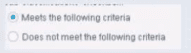
Select one:
Has no effect on irresolvable hosts
Generates a NOT condition in the sub-rule condition
Negates the criteria outside the property
Modifies the irresolvable condition to TRUE
The Answer Is:
AExplanation:
Based on the image showing "Meets the following criteria" radio button selected (as opposed to "Does not meet the following criteria"), the correct statement is: "Has no effect on irresolvable hosts".
Understanding "Meets the following criteria":
According to the Forescout policy configuration documentation:
When "Meets the following criteria" is selected:
Normal Evaluation - The condition is evaluated as written
No Negation - There is NO inversion of logic
Irresolvable Handling - Separate setting; the "Meets" choice does NOT affect irresolvable handling
Irresolvable Hosts - Independent Setting:
According to the policy sub-rule advanced options documentation:
"The 'Meets the following criteria' radio button and the 'Evaluate irresolvable as' checkbox are independent settings."
"Meets the following criteria" - Controls normal/negated evaluation
"Evaluate irresolvable as" - Controls how unresolvable properties are treated
The selection of "Meets the following criteria" has no specific effect on how irresolvable hosts are handled.
Why Other Options Are Incorrect:
B. Generates a NOT condition - "Meets" does NOT generate NOT; it's the normal condition
C. Negates the criteria outside - "Meets" does not negate anything; it's the affirmative option
D. Modifies irresolvable condition to TRUE - The "Evaluate irresolvable as" setting controls that, not "Meets"
Referenced Documentation:
Define policy scope
Forescout eyeSight policy sub-rule advanced options
Forescout Platform Policy Sub-Rule Advanced Options
Which of the following is true regarding CounterACT 8 FLEXX Licensing?
CounterACT 8 can be installed on all CTxx and 51xx models.
Disaster Recovery is used for member appliances.
For member appliances, HA and Failover Clustering are part of Resiliency licensing.
Changing the licensing of the deployment from Per Appliance Licensing to FLEXX Licensing can be done through the Customer Portal.
Failover Clustering is used with EM and RM.
The Answer Is:
CExplanation:
Comprehensive and Detailed Explanation From Exact Extract of Forescout Platform Administration and Deployment:
According to the Forescout Licensing and Sizing Guide and Failover Clustering Licensing Requirements documentation, the correct statement is: For member appliances, HA and Failover Clustering are part of Resiliency licensing.
Resiliency Licensing for Member Appliances:
According to the Failover Clustering Licensing Requirements documentation:
"To begin working with Failover Clustering, you need a license for the feature. The license required depends on which licensing mode your deployment is using."
When using FLEXX licensing with member appliances:
High Availability (HA) - Part of Resiliency licensing
Failover Clustering - Part of Resiliency licensing (called "eyeRecover License")
Disaster Recovery - Separate from member appliance resiliency
Resiliency License Components:
According to the documentation:
"When using Flexx licensing, Failover Clustering functionality is supported by the Forescout Platform eyeRecover license (Forescout CounterACT Resiliency license)."
The Resiliency license covers:
For Member Appliances:
High Availability (HA) Pairing
Failover Clustering
For Enterprise Manager:
HA Pairing for EM
FLEXX Licensing Model:
According to the Licensing and Sizing Guide:
"Flexx Licensing: Licenses are independent of hardware appliances, providing an intuitive and flexible way to license, deploy and manage Forescout products across your extended enterprise."
Why Other Options Are Incorrect:
A. Can be installed on all CTxx and 51xx models - FLEXX is for 5100/4100 series and later; CT series supports per-appliance licensing only
B. Disaster Recovery is used for member appliances - Disaster Recovery is separate; member appliances use HA/Failover Clustering from Resiliency license
D. Changing via Customer Portal - Changes from per-appliance to FLEXX must be done through official Forescout channels, not self-service Customer Portal
E. Failover Clustering is used with EM and RM - Failover Clustering is for member appliances; EM has separate HA capability
Referenced Documentation:
Failover Clustering Licensing Requirements v8.4.4 and v9.1.2
Forescout Licensing and Sizing Guide
Switch from Per-Appliance to Flexx Licensing
What information must be known prior to generating a Certificate Signing Request (CSR)?
Certificate extension, format requirements, Encryption Type
Hostname, IP Address, and FQDN
IP address, CA, Host Name
Revocation Authority, Certificate Extension, CA
CA, Domain Name, Administrators Name
The Answer Is:
BExplanation:
Comprehensive and Detailed Explanation From Exact Extract of Forescout Platform Administration and Deployment:
According to the Forescout RADIUS Plugin Configuration Guide and CSR Generation documentation, the information that must be known prior to generating a Certificate Signing Request (CSR) is Hostname, IP Address, and FQDN.
Information Required for CSR Generation:
According to the RADIUS Plugin Configuration Guide:
"When you generate the certificate signing request (CSR), you must know the following information about the system requesting the certificate:
The hostname of the system
The IP address of the system
The FQDN (Fully Qualified Domain Name) of the system"
Standard CSR Requirements:
According to the official documentation:
When generating a CSR, the following information is typically requested:
Common Name (CN) - The FQDN or hostname of the system
IP Address - The IP address of the appliance or device
Organization Name - The organization/company name
Organization Unit (OU) - Department or division
Locality (L) - City or town
State (ST) - State or province
Country (C) - Country code
Key Type - Typically RSA (2048-bit minimum)
Core Required Elements:
The most critical information that MUST be known before generating the CSR:
Hostname - The computer/appliance name (e.g., "counteract-em-01")
IP Address - The management IP address of the appliance (e.g., "192.168.1.50")
FQDN - The fully qualified domain name (e.g., "counteract-em-01.example.com")
These three pieces of information are essential because:
The certificate's validity is tied to these identifiers
The CSR encodes these values
The CA uses this information to validate the certificate request
Endpoints and systems verify certificates against these values
Why Other Options Are Incorrect:
A. Certificate extension, format requirements, Encryption Type - These are configuration options, not prerequisite knowledge; extension type (e.g., .pfx, .pem) is determined after CSR signing
C. IP address, CA, Host Name - Missing FQDN; while CA information is needed eventually, it's not required to GENERATE the CSR
D. Revocation Authority, Certificate Extension, CA - Revocation authority and certificate extension are post-generation concerns; not needed to generate CSR
E. CA, Domain Name, Administrators Name - Administrator name is not necessary for CSR generation; CA information is needed for obtaining signed certificate, not generating CSR
CSR Generation Process:
According to the documentation:
Gather Required Information - Collect hostname, IP address, and FQDN
Generate CSR - Use tools like fstool cert gen to create the CSR file
Answer Prompts - Provide the hostname, IP, and FQDN when prompted
Submit to CA - Send the CSR file to a Certificate Authority for signing
Receive Signed Certificate - CA returns the signed certificate
CSR File Output:
According to the documentation:
The CSR generation process creates a file (typically ca_request.csr) containing:
The encoded hostname, IP address, and FQDN
The public key
The signature algorithm
Other system identification information
This file is then submitted to a Certificate Authority for signing.
Referenced Documentation:
Forescout RADIUS Plugin Configuration Guide v4.3 - Certificate Readiness section
Create a Certificate Sign Request documentation
How to Create a CSR (Certificate Signing Request) - DigiCert Reference
RADIUS Plugin Configuration - System Certificate section